Introducing Chrome’s Split View: A New Era for Web Multitasking
For fans of efficiency and multitasking, Google Chrome introduces a feature that reshapes how we browse: Split View. If you’re accustomed to jumping between dozens of tabs, keeping research on one side and chat windows on the other, or tracking spoilers for the latest series, the new split view is tailor-made for your workflow. Frictionless and intuitive, this tool lets you simultaneously view two web pages in a single browser window—no more endless tab switching or cluttered desktops.
What Does Split View Bring to the Table?
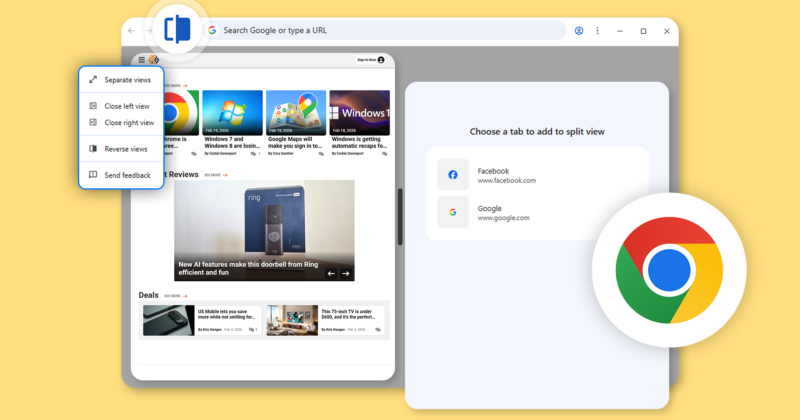
Unlike conventional tab and window navigation, split view creates an instantly accessible tiling layout with two panels side by side, each displaying its own web page, document, or media. The clear division means you can deep-dive into a gamer forum on one side while dropping into a walkthrough or leaderboard on the other—all within the same window and tab bar.
Activating split view is as simple as updating to the latest version of Chrome and using a right-click menu on any link. Want to preview a new tech article without losing your place on that deep-dive forum thread? Right-click the link, select ‘Open Link in Split View‘, and you’re instantly running double duty. Chrome delivers each page side by side, with a dedicated toolbar icon offering options to reverse the split, close either side, or swap their positions. Even the tab bar subtly adapts, visually connecting linked split views and streamlining your navigation experience.
Multiple Ways to Split, Tailored to Your Workflow
Not every task starts with a link—in fact, organizing pre-existing tabs is easy, too. Just right-click on a tab and hit ‘Add tab to new split view’ to select any second tab for the other side, or drag tabs directly from the tab bar to trigger split mode. While this approach may take a few tries to master, it offers versatility for researchers, gamers, and pop culture obsessives looking to group themed tabs together for quicker, smarter engagement.
Control at Your Fingertips: Navigating and Customizing Split View
Interaction is seamless. You can click directly into either page to scroll, browse, or interact, or use classic keyboard commands (like Ctrl + Tab) to cycle between tabs and split views. Each panel features its own mini-menu for common commands, putting powerful window management tools just a click away.
Resizing is another high point: Drag the central divider left or right to adjust your view proportions instantly—perfect for focusing on a long-form review in one panel while keeping your eye on a live chat in the other. A double-click on the divider swaps the panels’ content with a single move, maintaining your desired dimensions for fluid, distraction-free multitasking.
Integrated Productivity for Digital Natives
Where Split View shines is in its integration with Chrome’s native tab management. You can keep multiple split views among your traditional tabs, reordering or switching between them in familiar ways. For users who’ve struggled with OS-level tiling that demands window management or extra clicks, Chrome’s in-browser approach is remarkably fast and frictionless—no need to juggle separate browser windows just to compare patch notes, watch trailers, or reference two news stories side by side.
This is especially powerful for those tracking constantly updating feeds, whether it’s a social media hashtag blitz, new game patch notes, or comic release schedules. Power users can right-click any link in split view and send it to the other panel, making quick comparisons, research, or monitoring several stories at once almost effortless.
Chrome’s split view isn’t just about convenience—it’s a productivity upgrade that adapts to any workflow, from casual browsing to in-depth tech research, all with a visual edge that will appeal to digital natives and productivity enthusiasts alike.